

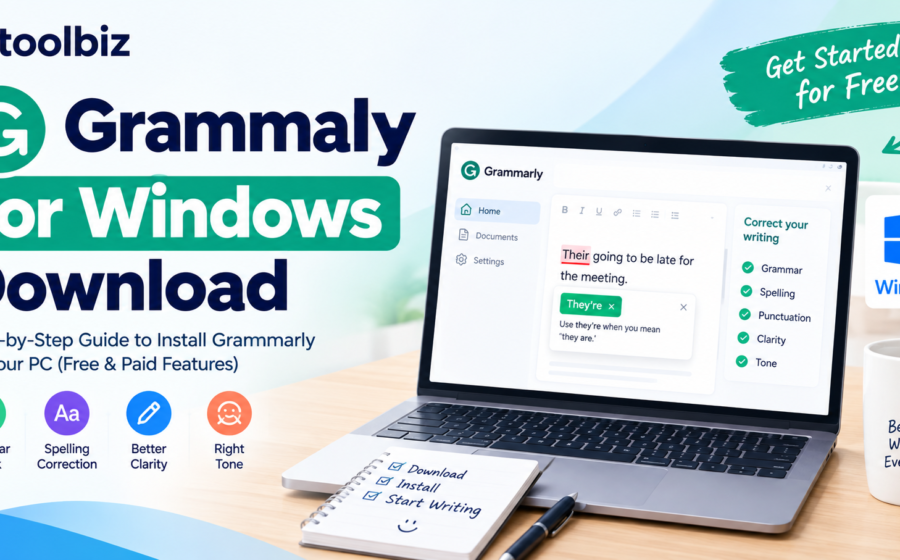
Grammarly for Windows Download
If you are looking for a Grammarly for Windows download, you can install Grammarly on your PC to improve grammar, spelling, punctuation, and writing clarity. It is a useful writing assistant for students, bloggers, office workers, freelancers, and anyone who wants to write more professionally.
Grammarly for Windows helps you review your writing across supported applications and websites. Instead of copying and pasting text into a separate grammar checker, you can receive writing suggestions while working in compatible programs.
The good news is that Grammarly offers a free plan for Windows users. You can start with basic writing assistance and consider upgrading if you need additional features.
In this guide, you will learn how to download Grammarly for Windows, install it on your computer, check the system requirements, understand its free and paid features, and fix common installation problems.
Grammarly for Windows Download: Quick Overview
| Detail | Information |
|---|---|
| Software name | Grammarly for Windows |
| Developer | Grammarly |
| Category | AI writing assistant and grammar checker |
| Operating system | Windows 10 or newer |
| Pricing | Free plan available; paid plans offer additional features |
| Main features | Grammar, spelling, clarity, and writing assistance |
| Installation source | Official Grammarly website or Microsoft Store |
| Best for | Students, bloggers, professionals, and everyday writers |
Official download: Visit the Grammarly for Windows download page to get started.
Table of Contents
What Is Grammarly for Windows?
Grammarly for Windows is a desktop writing assistant designed to help you improve your writing while using supported applications and websites.
It identifies common writing mistakes and provides suggestions that can help make sentences clearer, more professional, and easier to understand.
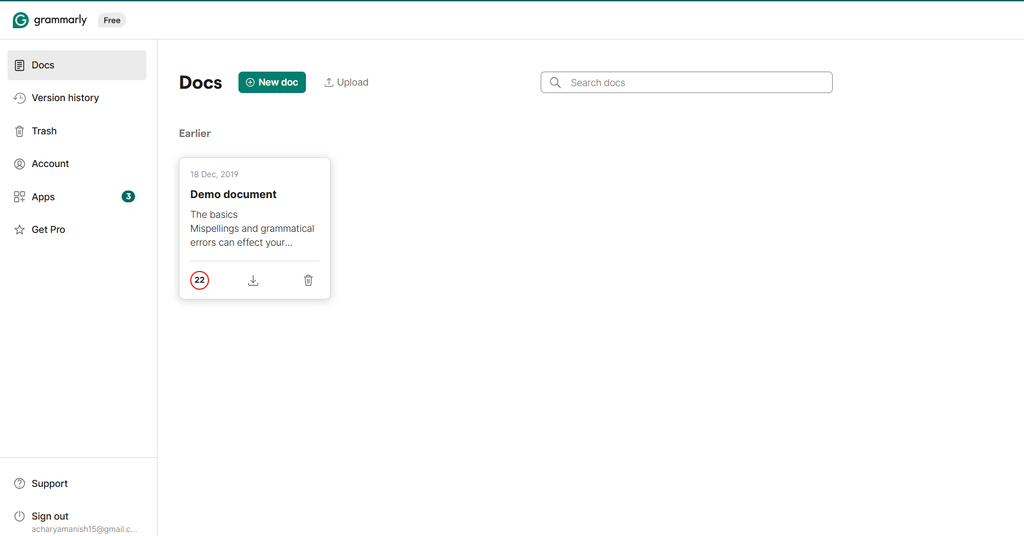
For example, imagine you are writing a business email, preparing a college assignment, or publishing a blog post. Grammarly can highlight potential grammar and spelling problems and suggest corrections as you work.
Depending on your plan and the supported application, Grammarly can also help with rewriting, tone adjustments, and AI-assisted drafting.
Key Features of Grammarly for Windows
1. Grammar and spelling checking
Grammarly identifies many common grammar and spelling mistakes, helping you prepare cleaner documents before sending or publishing them.
2. Punctuation correction
It can highlight punctuation problems, including incorrect comma placement and other common writing errors.
3. Clarity improvements
Grammarly suggests ways to simplify complicated sentences, remove unnecessary wording, and communicate ideas more clearly.
4. Tone suggestions
Tone-related feedback can help you make your emails and messages sound more appropriate for their intended audience.
5. AI writing assistance
Depending on your plan and usage limits, Grammarly can help generate drafts, rewrite passages, and suggest improvements.
6. Integration with supported applications
Grammarly is designed to work across supported desktop applications, word processors, email clients, and websites, reducing the need to switch between different editing tools.
How to Download Grammarly for Windows in 2026
Downloading Grammarly for Windows is straightforward. Follow these steps to get the official version for your PC.
Step 1: Visit the Official Grammarly Website
Open your web browser and visit:
https://www.grammarly.com/desktop/windows
This is Grammarly’s official Windows download page. You can review the available features and access the download option.
Step 2: Download Grammarly
Follow the download link provided on the official page. Grammarly for Windows is also available through the Microsoft Store.
If you prefer the Microsoft Store, search for Grammarly there and verify that the publisher is Grammarly before installing it.
Avoid third-party download websites that offer modified or unofficial installers.
Step 3: Open the Downloaded Installer
Once the download is complete, locate the downloaded installation file in your Downloads folder.
Double-click the file and follow the on-screen instructions to install Grammarly.
If Windows displays a security prompt, verify that you downloaded the installer from an official source before proceeding.
Step 4: Sign In to Your Grammarly Account
After installation, open Grammarly and sign in to your existing account. If you are new to Grammarly, follow the account registration instructions.
Signing in allows you to access the features available to your account.
Step 5: Start Writing
Open a supported application or website and begin typing.
Grammarly can display writing suggestions through its desktop interface or floating widget, depending on the application and current product experience.
Review each suggestion and accept only the corrections that preserve your intended meaning.
Download Grammarly for Windows: Get Grammarly from the official website.
Grammarly for Windows System Requirements
Before installing Grammarly, make sure your computer meets its minimum requirements.
According to Grammarly’s published support documentation, the Windows desktop application requires Windows 10 version 1903 or newer. The documented requirements also include .NET Framework 4.7.2 or later, at least 4 GB of RAM, and a compatible browser version.
| Requirement | Published requirement |
|---|---|
| Operating system | Windows 10, build 1903 or newer |
| RAM | At least 4 GB; 8 GB recommended |
| .NET Framework | Version 4.7.2 or newer |
| Compatible browser | Chrome or Microsoft Edge, version 89 or newer, according to the documented requirements |
Requirements may change with software updates. Check the official Grammarly system requirements before installation if you are using an older computer.
If your computer is incompatible with the desktop application, you can consider using the Grammarly Editor in a supported browser.
Is Grammarly for Windows Free?
Yes. Grammarly offers a free plan that you can use on Windows without paying for a subscription.
However, not every Grammarly feature is included in the free plan. Advanced writing suggestions and additional capabilities may require a paid subscription.
Grammarly Free vs. Grammarly Pro
| Feature | Grammarly Free | Grammarly Pro |
|---|---|---|
| Basic grammar assistance | Available | Available |
| Spelling corrections | Available | Available |
| Punctuation assistance | Available | Available |
| Basic clarity suggestions | Available, with limitations | More advanced suggestions |
| Advanced writing improvements | Limited | Additional capabilities |
| AI writing assistance | Subject to free-plan limits | Higher limits and additional capabilities |
| Cost | Free | Paid subscription |
The exact features and usage limits may change. Review the official Grammarly plans before choosing a subscription.
My recommendation: Start with Grammarly Free. If you mainly need grammar and spelling corrections for emails, assignments, or blog posts, the free plan may be sufficient.
How to Use Grammarly on Windows
Once Grammarly is installed, using it is simple.
- Open a supported application, such as Microsoft Word, or visit a compatible website.
- Start typing your document, email, or message.
- Look for Grammarly’s writing suggestions.
- Click a highlighted word or suggestion to review the recommended correction.
- Accept, reject, or modify the suggestion based on your intended meaning.
- Review the complete document before sending or publishing it.
Grammarly can help you identify mistakes, but it does not guarantee that every sentence will be correct. Always review important documents carefully.
Can You Use Grammarly in Microsoft Word?
Yes. Grammarly supports writing assistance in Microsoft Word and Outlook on Windows.
Depending on your setup and the current product version, you may see Grammarly suggestions within the application or through its desktop interface.
This is helpful for students preparing assignments, professionals writing reports, and office workers sending business emails.
For the latest compatibility details, consult Grammarly’s official Windows download page.
Grammarly Desktop App vs. Grammarly Browser Extension
Grammarly offers different ways to access its writing assistance. The desktop application and browser extension serve related purposes, but their availability and behavior can differ.
| Feature | Windows Desktop App | Browser Extension |
|---|---|---|
| Installation | Install the Windows application | Add the extension to a supported browser |
| Main purpose | Writing assistance across supported desktop workflows | Writing assistance on supported websites |
| Microsoft Word | Supported | Browser-based functionality depends on the environment |
| Website editing | Works in supported contexts | Works on supported websites |
| Best for | People who work across desktop applications | People who write mainly in a browser |
You do not necessarily need both. Choose the option that best fits your writing workflow and verify compatibility with the applications you use most often.
Benefits of Using Grammarly for Windows
Grammarly can make everyday writing easier in several ways.
Saves Editing Time
Instead of manually checking every sentence for common errors, you can review suggested corrections while writing.
Helps You Write More Professionally
Grammar, spelling, and clarity suggestions can help you prepare polished business emails, reports, assignments, and online content.
Works Across Supported Applications
The desktop application is designed to provide writing assistance in multiple supported environments, reducing the need to switch between applications.
Supports Different Writing Tasks
You can use Grammarly for emails, schoolwork, business documents, blog posts, and other everyday writing.
Offers a Free Starting Point
The free plan allows you to try Grammarly before deciding whether its paid features are worth the cost.
Common Grammarly for Windows Download Problems and Fixes
Sometimes the download or installation process does not work as expected. Here are a few common issues and possible solutions.
1. Grammarly Will Not Download
Check your internet connection and try again from the official Grammarly website.
If the download does not start, try another supported browser or use the Microsoft Store listing.
2. Grammarly Will Not Install
First, check whether your Windows version meets the minimum requirements.
Make sure the installer finished downloading. If the problem continues, restart your computer and download a fresh copy from the official source.
3. Grammarly Is Not Working in Microsoft Word
Confirm that you have installed Grammarly and signed in successfully. Make sure you are using a supported version of Word and check whether Grammarly is enabled for that application.
If the problem persists, consult the official Grammarly Support Center.
4. Grammarly Is Not Showing Suggestions
Open a supported application or website and begin typing. Some applications, fields, or protected environments may not support Grammarly’s writing assistance.
You can also check the application’s permissions and Grammarly’s settings.
5. Grammarly Is Running Slowly
Close unnecessary applications and check whether your computer meets the recommended system requirements.
Updating Windows and your supported browser may also help resolve compatibility problems.
6. Grammarly Is Asking You to Upgrade
Some writing suggestions and AI features require a paid subscription. If you see an upgrade prompt, check whether the feature you are trying to use is included in your current plan.
You can continue using the features available in Grammarly Free without upgrading.
Is Grammarly for Windows Safe to Download?
The safest approach is to download Grammarly directly from its official website or the Microsoft Store.
Avoid unofficial installers, modified versions, and websites that ask you to disable your antivirus software to install a grammar checker.
Before using Grammarly with sensitive documents, review its privacy policy and consider whether the information you are writing is appropriate to share with an online service.
Grammarly provides settings that let users control where its writing assistance is active. Check these options if you do not want it to process text in a particular application.
For confidential business documents or personal information, follow your organization’s data-handling policies.
Best Free Alternatives to Grammarly for Windows
If Grammarly does not meet your needs, several other writing tools are worth considering.
| Alternative | Best For | Free Access |
|---|---|---|
| LanguageTool | Grammar and multilingual proofreading | Yes, with limits |
| Microsoft Editor | Microsoft Word users | Basic features available |
| Hemingway Editor | Readability improvement | Yes, online editor |
| QuillBot | Paraphrasing and rewriting | Yes, with limits |
| ChatGPT | Flexible AI-powered editing | Yes, with usage limits |
You can explore our guide to the best free Grammarly alternatives in 2026 to compare these tools in more detail.
If you only need basic proofreading, a free alternative may be enough. If you want Grammarly’s particular desktop workflow, try the official free version before switching.
Conclusion: Should You Download Grammarly for Windows?
Grammarly for Windows is a useful option for people who want to improve grammar, spelling, punctuation, and writing clarity while working on their computers.
Its desktop integration can be especially convenient for students, bloggers, freelancers, and professionals who regularly write emails, reports, assignments, or online content.
The free plan makes it easy to get started without paying immediately, while paid plans provide additional writing assistance for users who need more advanced capabilities.
If you want to try it, download the official application here:
Download Grammarly for Windows from the official website
Before installing, confirm that your PC meets the system requirements. Once installed, review its suggestions carefully and use the features that best support your writing goals.
Frequently Asked Questions
How do I download Grammarly for Windows?
Visit Grammarly’s official Windows download page, follow the download instructions, open the installer, and complete the installation. Sign in to your account to start using the available features.
Is Grammarly for Windows free to download?
Yes. Grammarly offers a free plan for Windows users. Some advanced writing suggestions and AI features require a paid subscription.
Does Grammarly work on Windows 10?
Yes. Grammarly’s documented minimum requirement is Windows 10 version 1903 or newer. Check the official system requirements for the latest compatibility information.
Does Grammarly work on Windows 11?
Grammarly’s Windows 10-or-newer requirement includes Windows 11. Your computer must also meet the other applicable system requirements.
Can I use Grammarly in Microsoft Word?
Yes. Grammarly supports Microsoft Word and Outlook on Windows. The exact interface and available features may depend on your version of the application and Grammarly plan.
Do I need to create a Grammarly account?
Signing in to a Grammarly account is the recommended way to access your account features and settings across supported products. Follow the official setup instructions if you are a new user.
Why is Grammarly not installing on my PC?
Possible causes include an incompatible Windows version, an incomplete download, or a software conflict. Check your system requirements, download a fresh installer from the official source, and restart your computer if necessary.
Can I use Grammarly without downloading it?
Yes. You can use the Grammarly Editor in a supported web browser without installing the Windows desktop application.
Is Grammarly better than Microsoft Editor?
It depends on your needs. Grammarly offers its own desktop writing workflow and suggestions across supported applications, while Microsoft Editor is convenient for people who primarily use Microsoft products. Compare the available free features before choosing.
How do I update Grammarly for Windows?
Grammarly’s Windows application receives updates through its supported update process. If you suspect your installation is outdated or malfunctioning, check the official support documentation for the latest update and troubleshooting instructions.